

SSO
Single Sign-On (SSO) Integration Guide for the Treasury Portal
Overview
Yellow Card Treasury Portal supports Single Sign-On (SSO) integration with your corporate identity provider, allowing your team to access the portal using their existing corporate credentials. This guide covers the setup process for popular identity providers and configuration requirements.
Supported Protocols
- OIDC (OpenID Connect) - Recommended for most modern identity providers
- SAML 2.0 - Traditional enterprise protocol, widely supported
Supported Identity Providers
- Okta
- Microsoft Entra ID (formerly Azure AD)
- Google Workspace
- Auth0
- Any SAML 2.0 or OIDC-compliant identity provider
Quick Navigation
📋 Configuration Steps:
🔧 Provider-Specific Setup Guides:
🔒 Important Sections:
Getting Started
Prerequisites
- Admin Access: You must have the Admin role on the Treasury Portal
- IdP Admin Access: Administrative access to your corporate identity provider
- Email Domain: Your organisation must use a consistent email domain (e.g.,
@yourcompany.com) for all users
Overview of Setup Process
- Configure SSO under Account settings in Treasury Portal
- Create an application in your identity provider
- Configure attribute mappings
- Test the connection
- Activate SSO for your organisation
Step 1: Configure SSO in Treasury Portal
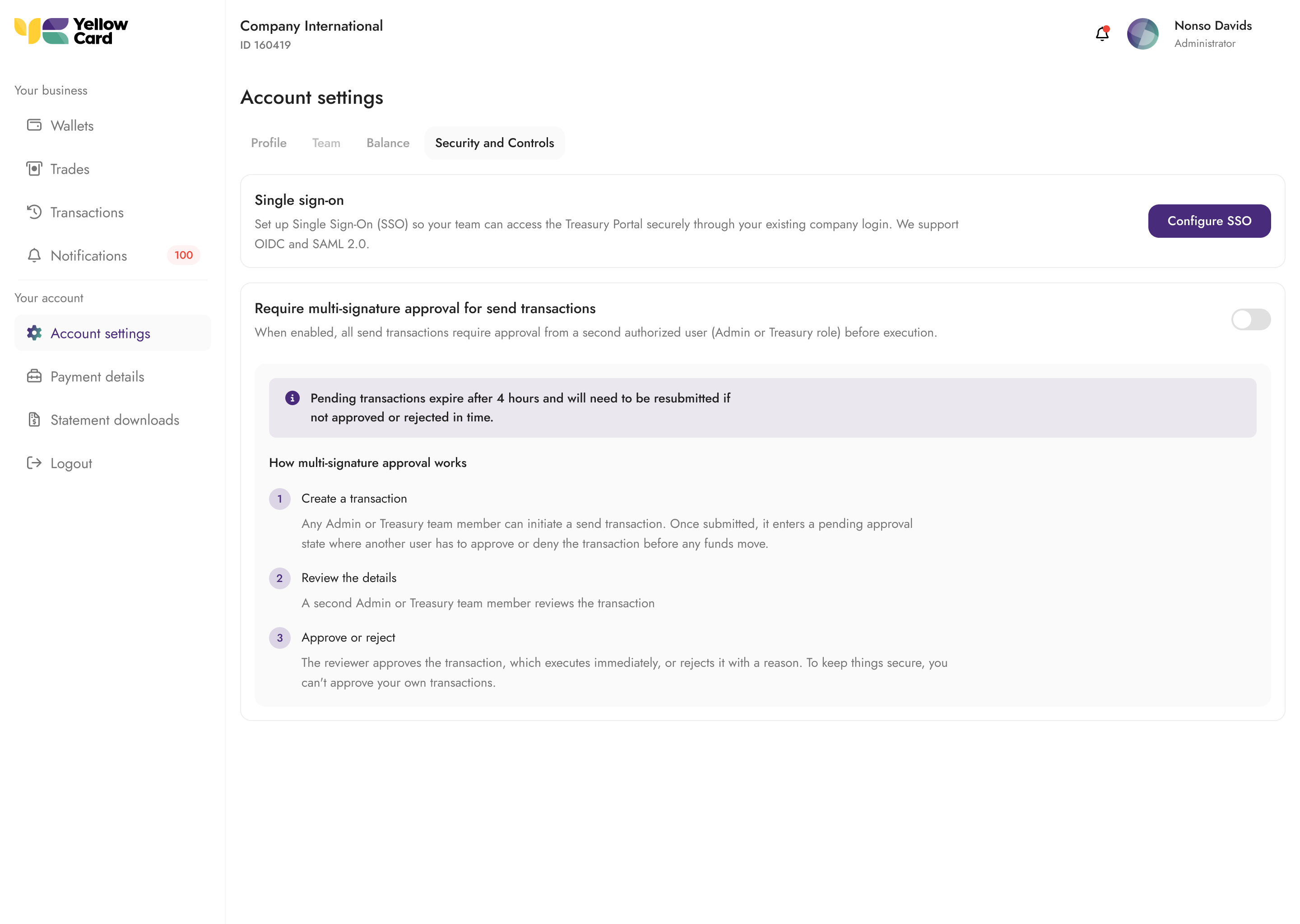
You must have Admin role access to configure SSO settings.
- Log in to the Treasury Portal with your Admin account
- Navigate to Account Settings > Security and Controls > Single Sign-On
- Click Configure SSO
- Choose your protocol (OIDC recommended for most providers)
- Enter your identity provider details (covered per-provider below)
- Test your connection and activate.
Provider-Specific Setup Guides
Note: The configuration values shown here are placeholders. Actual values will be provided on the Treasury Portal configuration interface
Okta

Protocol: OIDC (Recommended) or SAML 2.0
Tip: For Okta, OIDC is recommended as it's more straightforward to configure and provides better error messaging during troubleshooting.
OIDC Setup with Okta
-
In Okta Admin Console:
- Navigate to Applications > Applications
- Click Create App Integration
- Select OIDC - OpenID Connect
- Choose Web Application
- Configure the application:
- App integration name: "Yellow Card Treasury Portal"
- Grant type: Authorization Code
- Sign-in redirect URIs:
https://sso.portal.yellowcard.io/oauth2/idpresponse - Sign-out redirect URIs:
https://portal.yellowcard.io/login - Assignments: Assign to appropriate groups/users
-
In Treasury Portal:
- Protocol: OIDC
- Issuer URL:
https://yourorg.okta.com(replace with your Okta domain) - Client ID: Copy from Okta application settings
- Client Secret: Copy from Okta application settings
SAML Setup with Okta
-
In Okta Admin Console:
- Navigate to Applications > Applications
- Click Create App Integration
- Select SAML 2.0
- Configure the application:
- App name: "Yellow Card Treasury Portal"
- Single sign on URL:
https://sso.portal.yellowcard.io/saml2/idpresponse - Audience URI (SP Entity ID):
urn:amazon:cognito:sp:eu-west-2_XgIgQU2Xa - Default RelayState: (leave blank)
- Name ID format: EmailAddress
- Application username: Email
-
Configure Attribute Mappings (Choose one approach):
Okta has two approaches for configuring SAML attributes. Both achieve the same result, but note the different expression syntax between the two interfaces.
Option A: Configure SAML Attributes (Newer Interface)If you're configuring attribute statements via custom claims on your Okta application:
Name Expression http://schemas.xmlsoap.org/ws/2005/05/identity/claims/emailaddressuser.profile.email http://schemas.xmlsoap.org/ws/2005/05/identity/claims/givennameuser.profile.firstName http://schemas.xmlsoap.org/ws/2005/05/identity/claims/surnameuser.profile.lastName http://schemas.xmlsoap.org/ws/2005/05/identity/claims/nameuser.profile.firstName http://schemas.xmlsoap.org/ws/2005/05/identity/claims/nameidentifieruser.profile.login Option B: Attribute Statements (Legacy Interface)Name Format Value http://schemas.xmlsoap.org/ws/2005/05/identity/claims/emailaddressURI Reference user.email http://schemas.xmlsoap.org/ws/2005/05/identity/claims/givennameURI Reference user.firstName http://schemas.xmlsoap.org/ws/2005/05/identity/claims/surnameURI Reference user.lastName http://schemas.xmlsoap.org/ws/2005/05/identity/claims/nameURI Reference user.firstName http://schemas.xmlsoap.org/ws/2005/05/identity/claims/nameidentifierURI Reference user.login -
In Treasury Portal:
- Protocol: SAML
- Metadata URL: Copy from Okta application settings (under "Sign On" tab)
-
Configure Single Logout in Okta (required for propagated logout):
- In your Okta SAML app, go to General > SAML Settings > Edit
- Under Show Advanced Settings, enable Enable Single Logout
- Single Logout URL: Copy the SLO URL shown in the Treasury Portal SP metadata panel
- SP Issuer: Copy the Entity ID from the same panel
- Signature Certificate: Click Browse and upload the SP signing certificate downloaded from Treasury Portal. This certificate allows Okta to verify the signature on logout requests from the Yellowcard Treasury Portal.
- Save the application
Microsoft Entra ID (Formerly Azure AD)

Protocol: OIDC (Recommended) or SAML 2.0
OIDC Setup with Entra ID
-
In Azure Portal:
- Navigate to Microsoft Entra ID > App registrations
- Click New registration
- Configure:
- Name: "Yellow Card Treasury Portal"
- Supported account types: Accounts in this organisational directory only
- Redirect URI: Web →
https://sso.portal.yellowcard.io/oauth2/idpresponse
- After creation, note the Application (client) ID
- Go to Certificates & secrets > New client secret
- Note the secret value (copy immediately)
-
In Treasury Portal:
- Protocol: OIDC
- Issuer URL:
https://login.microsoftonline.com/[TENANT_ID]/v2.0(replace with your tenant ID) - Client ID: Application (client) ID from Azure
- Client Secret: Client secret value from Azure
SAML Setup with Entra ID
-
In Azure Portal:
- Navigate to Microsoft Entra ID > Enterprise applications
- Click New application > Create your own application
- Choose Integrate any other application you don't find in the gallery
- Configure Single Sign-On:
- Identifier (Entity ID):
urn:amazon:cognito:sp:eu-west-2_XgIgQU2Xa - Reply URL (Assertion Consumer Service URL):
https://sso.portal.yellowcard.io/saml2/idpresponse
- Identifier (Entity ID):
-
User Attributes & Claims (Required):
Name Format Value http://schemas.xmlsoap.org/ws/2005/05/identity/claims/emailaddressURI Reference user.mail http://schemas.xmlsoap.org/ws/2005/05/identity/claims/givennameURI Reference user.givenname http://schemas.xmlsoap.org/ws/2005/05/identity/claims/surnameURI Reference user.surname http://schemas.xmlsoap.org/ws/2005/05/identity/claims/nameURI Reference user.displayName http://schemas.xmlsoap.org/ws/2005/05/identity/claims/nameidentifierURI Reference user.login -
In Treasury Portal:
- Protocol: SAML
- Metadata URL: Copy from Azure (SAML-based sign-on section)
-
Configure Single Logout in Entra ID (required for propagated logout):
- In your Enterprise Application, go to Single sign-on > SAML Certificates
- Under Basic SAML Configuration, set the Logout URL: Copy the SLO URL shown in the Treasury Portal SP metadata panel
- Under SAML Certificates, click Edit and upload the SP signing certificate downloaded from the Treasury Portal under Verification certificates (optional). Entra ID requires this certificate to verify signed logout requests from the Treasury Portal.
- Save the configuration
Google Workspace

Protocol: OIDC (Recommended) or SAML 2.0
Ensure you have Google Workspace admin privileges to create custom SAML apps or OAuth applications.
OIDC Setup with Google Workspace
-
In Google Cloud Console:
- Navigate to APIs & Services > Credentials
- Click Create Credentials > OAuth 2.0 Client IDs
- Configure:
- Application type: Web application
- Name: "Yellow Card Treasury Portal"
- Authorized redirect URIs:
https://sso.portal.yellowcard.io/oauth2/idpresponse
-
In Treasury Portal:
- Protocol: OIDC
- Issuer URL:
https://accounts.google.com - Client ID: Copy from Google Cloud Console
- Client Secret: Copy from Google Cloud Console
SAML Setup with Google Workspace
-
In Google Admin Console:
- Navigate to Apps > Web and mobile apps
- Click Add app > Add custom SAML app
- Configure:
- App name: "Yellow Card Treasury Portal"
- ACS URL:
https://sso.portal.yellowcard.io/saml2/idpresponse - Entity ID:
urn:amazon:cognito:sp:eu-west-2_XgIgQU2Xa - Start URL: (leave blank)
- Name ID format: EMAIL
- Name ID: Basic Information > Primary email
-
Attribute Mapping (Required):
Name Format Value http://schemas.xmlsoap.org/ws/2005/05/identity/claims/emailaddressURI Reference Basic Information > Primary email http://schemas.xmlsoap.org/ws/2005/05/identity/claims/givennameURI Reference Basic Information > First name http://schemas.xmlsoap.org/ws/2005/05/identity/claims/surnameURI Reference Basic Information > Last name http://schemas.xmlsoap.org/ws/2005/05/identity/claims/nameURI Reference Basic Information > Full name http://schemas.xmlsoap.org/ws/2005/05/identity/claims/nameidentifierURI Reference Basic Information > Primary email -
In Treasury Portal:
- Protocol: SAML
- Metadata URL: Copy from Google Admin Console
Single Logout is not supported with Google Workspace SAML
Required Attribute Mappings
For SAML Providers
Your SAML identity provider must provide these attributes:
| Attribute Name | SAML Claim | Description |
|---|---|---|
email | http://schemas.xmlsoap.org/ws/2005/05/identity/claims/emailaddress | User's email address (required for user identification) |
given_name | http://schemas.xmlsoap.org/ws/2005/05/identity/claims/givenname | User's first name |
family_name | http://schemas.xmlsoap.org/ws/2005/05/identity/claims/surname | User's last name |
name | http://schemas.xmlsoap.org/ws/2005/05/identity/claims/name | User's display name |
username | http://schemas.xmlsoap.org/ws/2005/05/identity/claims/nameidentifier | Subject identifier (used as username) |
For OIDC Providers
Your OIDC identity provider must provide these claims in the ID token:
| Claim Name | Description |
|---|---|
email | User's email address (required for user identification) |
given_name | User's first name |
family_name | User's last name |
name | User's display name |
sub | Subject identifier (used as username) |
Required Scopes: openid email profile
SAML Authentication Flow Requirements
SP-Initiated Flow Only: Treasury Portal only supports SP-initiated SAML authentication flows. IdP-initiated flows (clicking app tiles in your corporate dashboard) is not supported due to security considerations.
Supported Flow: SP-Initiated (Service Provider Initiated)
- How it works: User visits Treasury Portal login page → enters email → gets redirected to your IdP → authenticates → returns to Treasury Portal
- User experience: Users must start at
https://portal.yellowcard.io/login
Unsupported Flow: IdP-Initiated (Identity Provider Initiated)
- What this means: Users cannot click SAML app tiles in Okta/Google Admin Console to access the Treasury Portal
- Alternative: Users should bookmark
https://portal.yellowcard.io/loginand start authentication there
User Training Required
Inform your users that they must:
- Navigate directly to
https://portal.yellowcard.io/login - Enter their corporate email address
- Click the SSO button to be redirected to your corporate IdP
Common Configuration Issues & Solutions
1. PKCE Configuration
We do not currently support PKCE (Proof Key for Code Exchange).
- For OIDC applications: Ensure PKCE is disabled or set to "Not required" in your identity provider
- Future Support: PKCE support is planned for a future release
2. Attribute Mapping Errors
Symptoms: Users can authenticate but receive errors about missing profile information
Solutions:
- Verify all required attributes are mapped correctly
- Check attribute names match exactly (case-sensitive)
- For SAML: Ensure Name ID format is set to "EmailAddress" or "Email"
- For OIDC: Verify the
email,given_name, andfamily_nameclaims are included in the ID token
3. Callback URL Mismatches
Symptoms: "Redirect URI mismatch" or "Invalid redirect URI" errors
Solutions:
- Verify callback URLs match exactly:
- OIDC:
https://sso.portal.yellowcard.io/oauth2/idpresponse - SAML:
https://sso.portal.yellowcard.io/saml2/idpresponse
- OIDC:
- Check for trailing slashes or HTTP vs HTTPS mismatches
- Ensure URLs are added to your IdP's allowed/authorised redirect list
4. Certificate and Metadata Issues
Symptoms: SAML authentication fails with certificate or signature errors
Solutions:
- For metadata URL: Ensure the URL is publicly accessible and returns valid XML
- For manual configuration: Verify the X.509 certificate is valid and properly formatted
- Check that the signing certificate matches the one used by your IdP
5. User Assignment and Access
Symptoms: Some users can't access the application even after SSO is configured
Solutions:
- Ensure users/groups are assigned to the SSO application in your IdP
- Check that the user email domains match your configured domain
6. SAML App Tile Clicking Results in Errors
Symptoms: Users click SAML app tile in Okta/Google and get 400 errors or "Invalid samlResponse" errors
Solution:
- This is expected behaviour - Treasury Portal does not support IdP-initiated SAML flows
- Train users to navigate directly to
https://portal.yellowcard.io/logininstead of clicking app tiles - Users should enter their email and use the SSO button for authentication
Testing Your Configuration
Important: Always test your SSO configuration before activating it for your organization. Testing helps identify configuration issues without affecting existing users.
Step 1: Test Connection
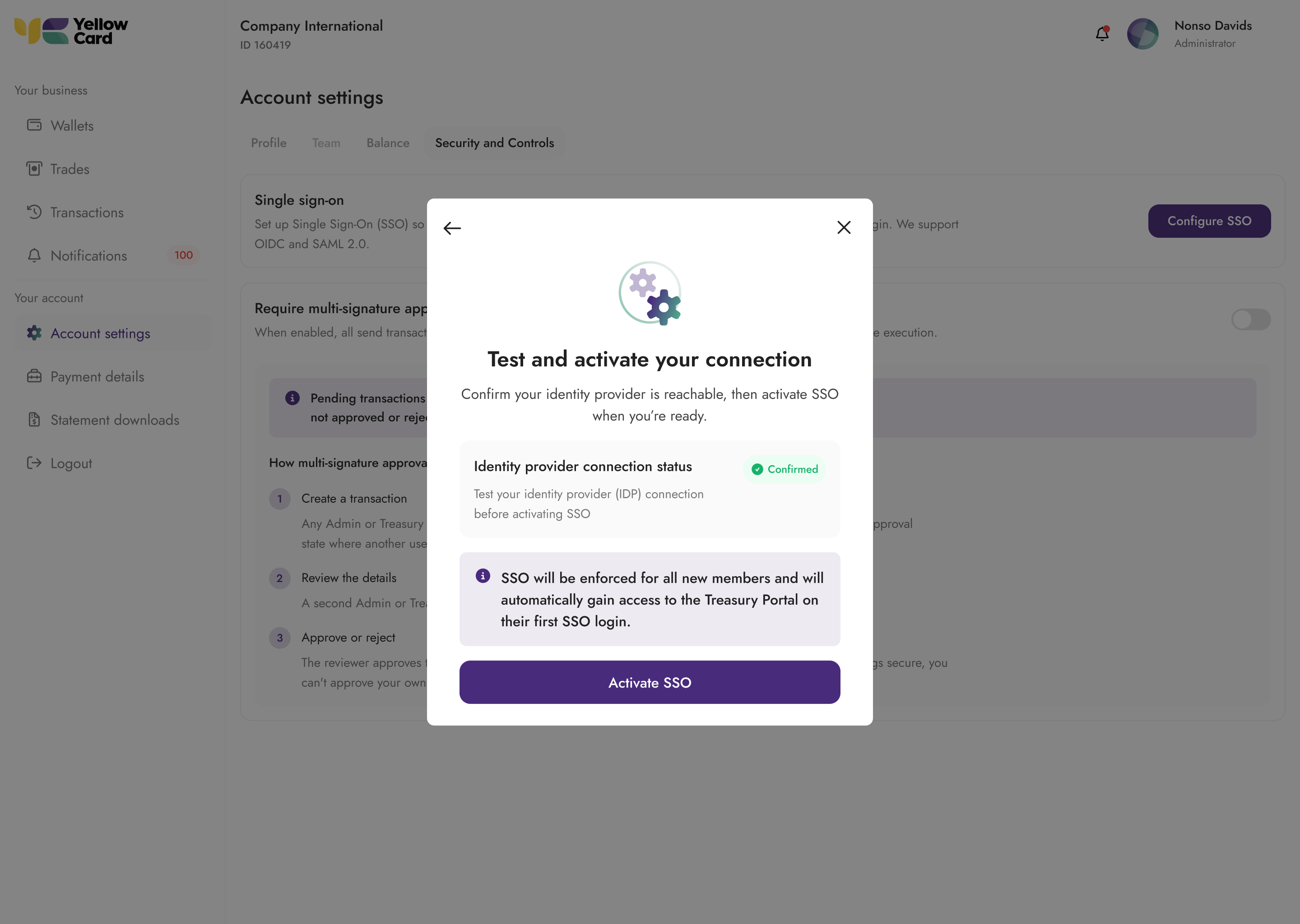
- In Treasury Portal SSO settings, click Test Connection. This does a test to confirm your issuer URL or metadata URL is valid and reachable.
- Verify the test passes without errors
- If errors occur, check the error message shown on the page to diagnose the issue.
Step 2: Test User Login
- Before activating, test with a single user account
- Open an incognito/private browser window
- Navigate to the Treasury Portal login page https://portal.yellowcard.io/login
- Enter your test user's email address
- Verify that the redirect to your corporate IdP occurs
- Complete authentication in your IdP
- Verify successful redirect back to the Treasury Portal
- Check that the user profile information is populated correctly
SAML Single Logout (SLO)
Single Logout ensures that when a user logs out of the Treasury Portal, their session is also terminated at your corporate IdP.
What You Need from the Treasury Portal
In the SSO configuration wizard, the SP Metadata panel provides two values needed for SLO:
| Field | What to do |
|---|---|
| SLO URL | Register this as the Single Logout URL in your IdP |
| SP signing certificate | Download and upload to your IdP. Your IdP uses this to verify the signature on logout requests from Treasury Portal |
Refer to the SLO configuration step in your provider's setup guide above (Okta, Entra ID). Google Workspace SAML does not support SLO.
Manual SAML Configuration (No Metadata URL)
If you configured SAML manually (SSO URL + Issuer + Certificate), you must also provide your IdP's SLO endpoint URL on the Treasury Portal. This can be found in your IdP's SAML metadata XML under the SingleLogoutService element.
Security Considerations
Role Assignment
- Important: User roles are controlled by the Treasury Portal, not your identity provider
- Default role is
viewfor all new SSO users - Role changes must be made within the Treasury Portal by an admin after user creation
Domain Security
- Each email domain can only be associated with one SSO configuration.
JIT Provisioning
- JIT provisioning is enabled by default when SSO is configured
- Admin notifications: Organisation admins will receive an email notification when a new user is automatically provisioned and signs in for the first time
Frequently Asked Questions (FAQ)
General Questions
Q: What protocols does Yellow Card Treasury Portal support for SSO?
A: We support both OIDC (OpenID Connect) and SAML 2.0. OIDC is recommended for most modern identity providers as it's easier to configure and more reliable.
Q: Can users still log in with username/password after SSO is enabled?
A: Yes, unless "Enforce SSO" is enabled. When SSO enforcement is disabled, users can choose between SSO login or traditional username/password with MFA. When enforcement is enabled, only SSO login is allowed for users from your organisation's domain.
Q: How long does SSO setup typically take?
A: The setup process usually takes less than 10 minutes, including configuration in both your identity provider and Treasury Portal, plus testing time.
User Management
Q: What role do new SSO users get by default?
A: All new users automatically receive the view role. Admins must manually upgrade user roles after account creation if needed.
Q: Do I get notified when new users access the portal via SSO?
A: Yes, organisation admins receive email notifications whenever a new user is automatically provisioned and signs in for the first time.
Q: Does Yellow Card support SCIM?
A: No, Yellow Card Treasury Portal does not currently support SCIM (System for Cross-domain Identity Management). SCIM support will be included in a future release to enable automated user lifecycle management.
Q: What happens if I disable a user in my identity provider?
A: The user will no longer be able to authenticate via SSO. However, their Treasury Portal account remains active until manually disabled by an admin within the portal.
Q: Can I migrate existing users to SSO without losing their data?
A: Yes, existing users can continue using their accounts. When they first log in via SSO, their accounts will be linked automatically based on their email address. No data is lost during this process.
Q: Why can't users click the SAML app tile in Okta/Google to access the Treasury Portal?
A: Treasury Portal only supports SP-initiated SAML flows for security reasons. Users must navigate to https://portal.yellowcard.io/login and use the SSO button instead.
Troubleshooting
Quick Fix: Most SSO issues are caused by incorrect callback URLs or missing attribute mappings. Check these first before diving into complex troubleshooting.
Common Error Messages
| Error | Cause | Solution |
|---|---|---|
| "Invalid redirect URI" | Callback URL mismatch | Check redirect URIs in IdP configuration |
| "Invalid client credentials" | Wrong client ID or secret for OIDC | Verify credentials match IdP settings |
| "SAML assertion validation failed" | Certificate or signature issue | Check the SAML certificate and metadata |
Support Contacts
For technical assistance with SSO setup:
- Treasury Portal Issues: Contact your Yellow Card account manager
- IdP Configuration Issues: Consult your IT administrator or IdP vendor documentation
- Urgent Issues: Use your organisation's support channels